
Table of Contents
- Course Access and Navigation
- Course Login
- Training Page
- Course Content and Navigation
- Types of Activities
- Quizzes
- Flashcards
- Padlets
- Videos
- Questions?
Course Access and Navigation
Course Login
Accounts are created for all participants and an email from Mental Health Matters of Washington is sent with login information (username and password). This account uses the email you used when you registered for the program.
If you did not receive the message and you have checked your spam folder, please send us an email as soon as possible to info@MentalHealthMattersWA.com so we can ensure you are able to access the course.
- To log in, go to the Mental Health Matters WA (MHM) website and select the Log In link from the site menu. This action will redirect you to the Login page.
- Enter the username and password you received and select the Log In button.
Once you are logged in, you will be taken to the Training page.
Note: We recommend changing your password as soon as possible. To do this, log off, go to the login page again and use the Forgot Password link to receive an email with a link to set up your new password.
Training Page
The Training page of the website shows current courses. To access your course content, select the tile image after you have logged in.
Note: If you access the page without logging in first, or try to access a course in which you are not enrolled, you will see NOT ENROLLED and Closed at the top of the course page.
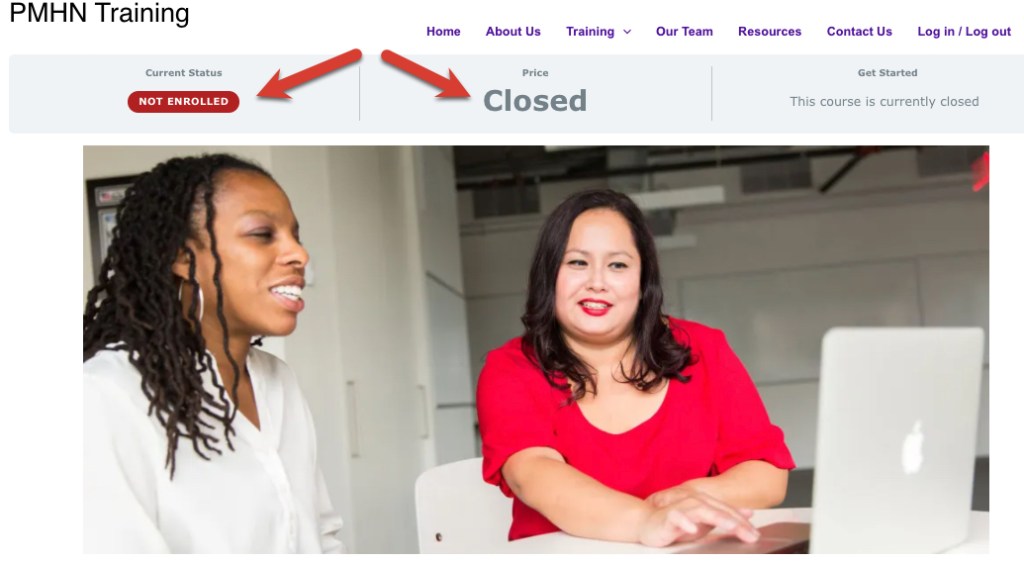
If you are enrolled in a current cohort, you will see Enrolled above the course tile image after you log in. Once you enter, you will be able to see your progress and have access to the content.

Course Content and Navigation
You will need to be logged in to access content and participate in the training activities. After beginning the course, you will find the course and the content is divided into several lessons. The links will be visible after the course information.
The training is set up to be linear, that means, that you need to complete each section and quiz of each lesson before you can access the next one.
As you go through each section, use the Mark Complete button. If all the sections and quizzes are done, once you finish a lesson, it will be marked as Complete automatically.
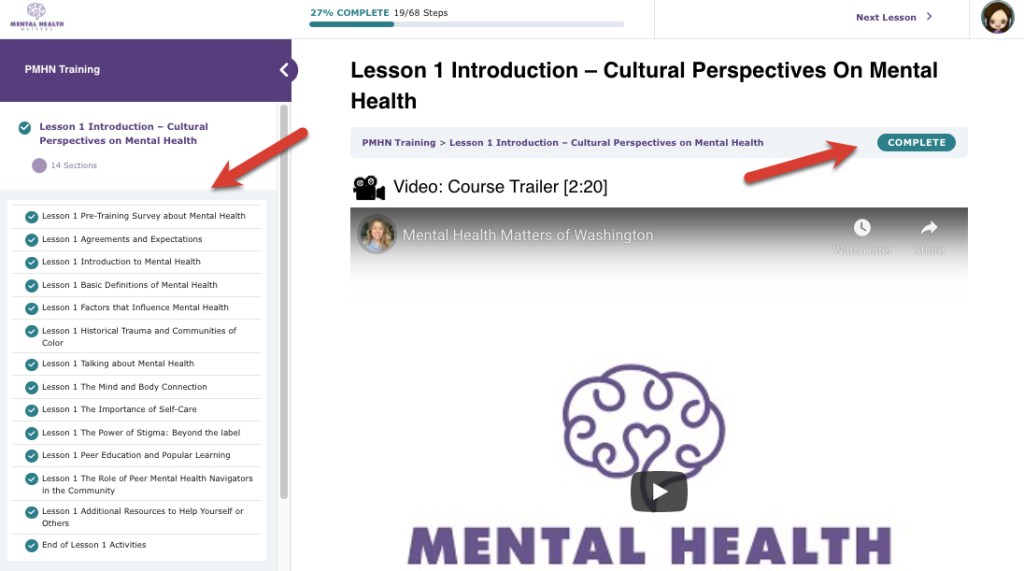
Sections
Each lesson contains several parts called sections. You can use the Expand All button on the course page to open all available lessons, or the Expand option (on the main content area as well as the Navigation Panel) to view the contents of a single lesson.

Navigation Panel
Navigating into each lesson you will see that the course navigation moves to the left side of the screen and the specific pages are displayed in the center of the screen. Note that you can collapse the navigation panel by selecting the left arrow icon.
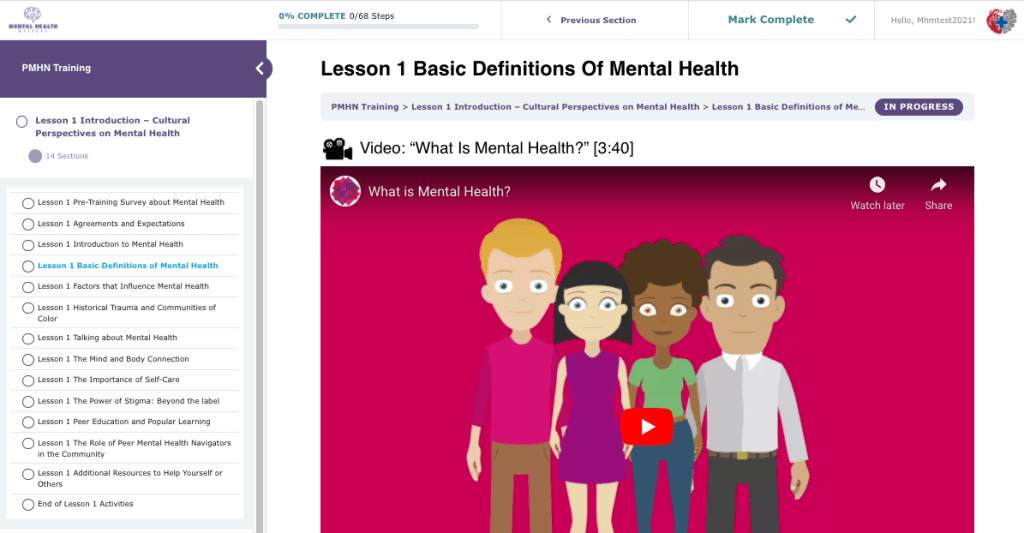
Activity Types
Throughout the course there are several self-check quizzes, flashcards, and discussion areas to interact called “Padlets.”
Quizzes
In the training course you will find embedded quiz questions, Self-Check quizzes, and End of Lesson quizzes. There is no limit on how many times you can take them. Question types will be multiple choice or true/false.
- Embedded Quiz Questions. These types of questions are inside lesson sections and are for quick review of the section concepts.
- Self-Check Quizzes. These type of quizzes have several multiple choice and questions related to a specific section.
- End of Lesson Quiz. These quizzes cover the whole lesson and they must be passed with a minimum of 70% grade before you can access the next lesson.
Flashcards
You will also see flashcards throughout the course. These cards can be flipped between a term and its definition by selecting the Turn button. You can navigate between cards by using the arrow buttons.

Padlets
Padlets are a collection of posts on a webpage. We use this tool for answering lesson prompts and class discussions. To create a post, select the button with a plus sign on the the page or double-click (or tap) anywhere on the page. This short Padlet tutorial has great information to get you started.
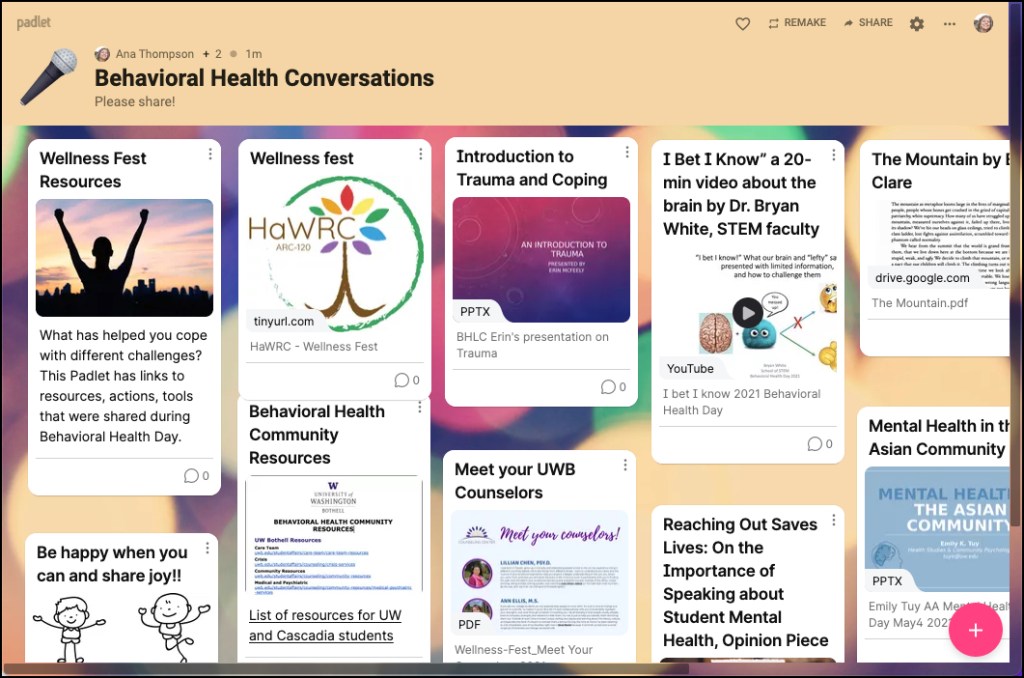
All posts are anonymous, so always start or end with your name to identify yourself in the conversations. You can always add more text, files, images, and videos. You can also reply to someone else’s Padlet post.
There are Padlets within each lesson, each with questions from the lesson sections. Also, in the End of Lesson activities there will be some prompts to ponder and respond to prepare you for the weekly live session.
Have questions?
For general questions about Mental Health Matters, or our trainings or event registration, please contact our team at info@mentalhealthmatters.com or Nohemí Rivera at naomystar@hotmail.com.
You must be logged in to post a comment.